
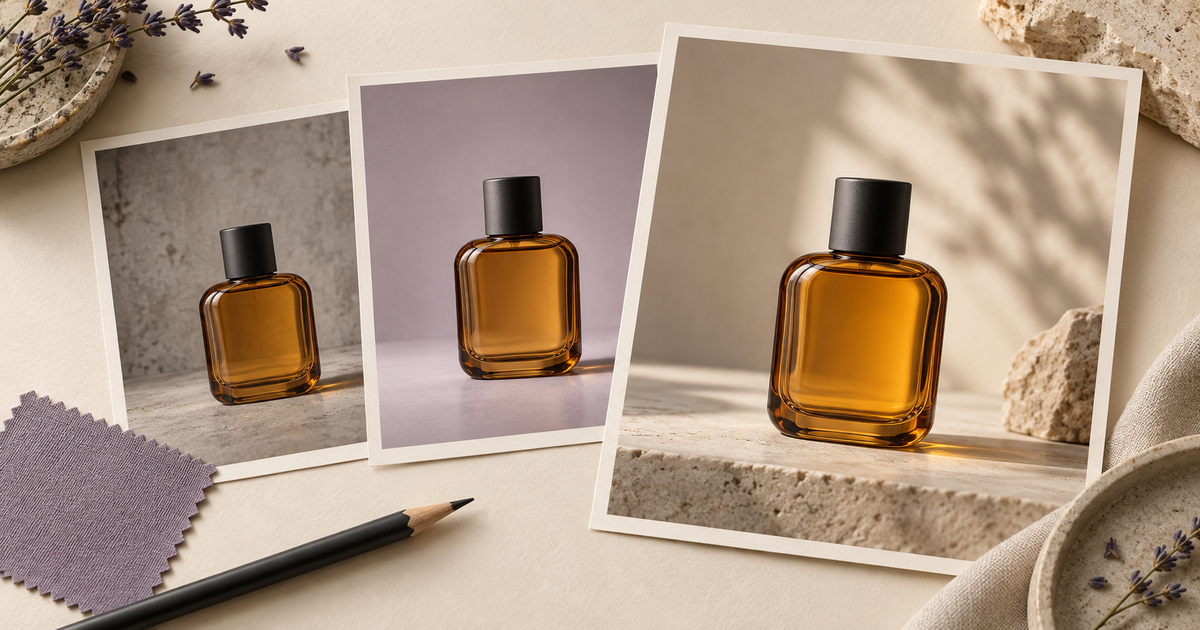
A product image can be almost right and still need work. Perhaps the bottle looks convincing, but the background competes with the label. Perhaps the composition fits your store, but a hard reflection hides the cap. Writing a new description of everything makes it difficult to tell which request actually helped.
Use VisionDir's Nano Banana Pro image-to-image tool to explore targeted revisions with an uploaded image. Check the selected model's current input requirements and settings before submitting. The workflow below is an editorial process, not a claim that an edit will preserve every pixel.
Build a product identity card
For an amber perfume bottle, write down the features that define the real item: a rounded rectangular body, a short neck, a charcoal cap and the label's position. Keep the original product photograph available for comparison.
Also list what you can change: the backdrop, surrounding props and lighting mood. This separation prevents a visual improvement from hiding an inaccurate product. If you are making a concept rather than depicting an existing item, label it as a concept in your own review notes.
Begin with a background decision
Select one source image and upload it to the image-to-image tool. Inspect the preview for an accidental crop or a missing detail. Start with a restrained request:
Replace the busy background with a pale lavender studio backdrop. Preserve the amber bottle's silhouette, cap shape, label position and camera angle. Keep the bottle standing on a flat surface with a natural contact shadow.
Compare the result to the source, especially around the shoulders of the bottle and the cap. A clean backdrop is useful only if the product remains suitable for its intended use. Download an acceptable version before moving on.
Make lighting a separate revision
Upload the chosen version for the next step. Keeping a local copy lets you return to the previous result if the new edit is less useful.
Soften the bright reflection on the bottle's right shoulder. Keep the current lavender background, framing, bottle proportions and label placement. Use gentle studio lighting with a readable glass edge.
Review the requested change and the product details independently. Glass reflections can look beautiful while disguising a distorted edge. If a label requires exact wording, check every character and use an appropriate finishing editor when necessary.
Keep a small revision log
A simple file naming convention is enough: “perfume-original,” “perfume-background-v1,” and “perfume-lighting-v2.” In a nearby note, record the source filename, prompt and reason for accepting or rejecting each output. These are files you manage yourself.
Avoid turning the log into a collection of vague preferences. “Cap widened” is actionable; “something feels off” is harder to use. If repeated attempts change the same important detail, return to the original source and simplify the request.
Review the image in the actual layout
Place the candidate image in a draft product card or landing-page layout. Check it at the size a visitor will see, then inspect the full-size image. A reflection that looks subtle on a large monitor may cover the whole label in a small thumbnail.
Leave room for your page's existing price, heading and call to action instead of asking the image to contain those elements. Confirm that props and shadows do not suggest accessories included with the product when they are only styling.
When should I stop editing?
Stop when the image meets the written brief and the product details pass review. If only typography, a crop or a precise color adjustment remains, handle it in your finishing workflow.
Explore the Nano Banana comparison workflow for model selection. If the final still will become a clip, use the text-to-video versus image-to-video guide to plan the next step.